
RTA Login and Registration Methods
The Roads and Transport Authority (RTA) offers several secure login options to help residents and businesses access online transport services. These services include vehicle registration, license renewal, fine payment, parking management, NOL cards, and much more.
This guide explains every login method, registration step, and troubleshooting tip so you can easily sign in to your RTA account.
What Is RTA Login?
RTA Login is your gateway to all online transport services offered by the Dubai Roads and Transport Authority. It allows users to check RTA Penalty and manage personal and company-related transactions safely and efficiently.
There are different login types, depending on whether you are an individual, a company, or a trusted agent.
RTA Login Methods
You can login through the UAE Pass, RTA username and password, or the RTA Dubai mobile app.
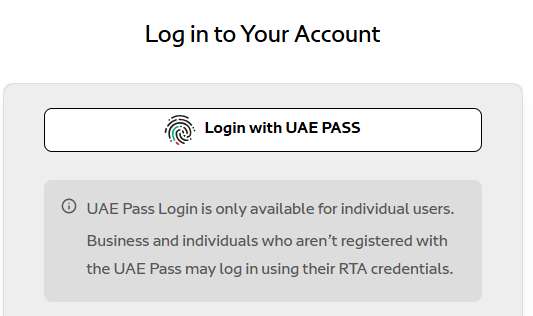
UAE Pass Login
The UAE Pass is the most secure and convenient login method. It gives users a single digital identity recognized by all UAE government entities.
It gives quick access without paperwork, provides secure authentication via Emirates ID. There is no need to remember separate RTA credentials. It works across RTA website and app.
Steps to Login Using UAE Pass:
- Visit www.rta.ae or open the RTA Dubai mobile app.
- Click “Login” and select “UAE Pass Login.”
- Enter your UAE Pass ID and password.
- Approve access through the UAE Pass app.
- You will be redirected to your RTA dashboard instantly.
Eligibility: You must have an active Emirates ID and a registered UAE Pass account.
Username and Password Login
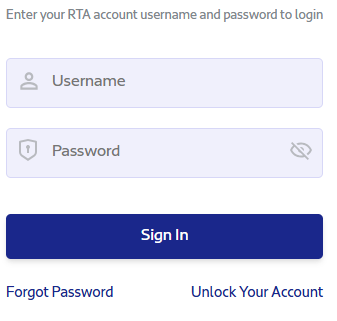
This method is ideal if you prefer not to use UAE Pass or have older credentials. How to Log In:
- Visit rta.ae or traffic.rta.ae.
- Enter your RTA username and password.
- Click “Login.”
Username Rules: Minimum 6 character, Only letters, numbers, and periods allowed
Password Rules: At least 8 characters, Must include one letter, one number, and one special character
Access Note: You can perform some actions without logging in (like paying fines), but full service access requires account authentication.
Dubai App Login
If you prefer mobile convenience, the RTA Dubai App is perfect. It allows you to access over 40 online services anytime. Login Process:
- Download the app from Google Play or Apple App Store.
- Open the app and tap “Login.”
- Choose UAE Pass or RTA credentials.
- Follow the verification prompts.
App Features After Login: you can renew your driving license and vehicle registration.
Manage parking and Salik accounts and pay traffic fines instantly.
Company Account Login
Businesses use special accounts to manage corporate vehicles, driver records, and permits. Login Process:
- Go to rta.ae and click “Login.”
- Select “Company.”
- Enter company administrator username and password.
Company Account Access Includes: eNOC applications, ROWPS, Vehicle and driver management, multiple user accounts for employees.
Trusted Agent Login
Trusted agents are authorized service providers who handle RTA transactions on behalf of clients. Key Features:
- Manage multiple customer profiles
- Perform delegated services
- Operate under administrator approval
Where to Login: Visit the Trusted Agent portal at rta.ae.
RTA Account Registration
You can register as an individual or as a company. Below are both processes.
Individual Registration
Follow the steps to take action and read the description for understanding.
| Step | Action | Description |
| 1 | Visit Website | Go to www.rta.ae and click “Login.” |
| 2 | Select Option | Choose “Register as Individual.” |
| 3 | Enter Details | Provide Emirates ID, email, and mobile number. |
| 4 | Verify Email | Enter the code sent to your inbox. |
| 5 | Set Password | Create a strong password that meets complexity rules. |
| 6 | Complete Setup | Your account is activated instantly. |
Tip: You can skip manual registration by logging in through UAE Pass, which creates your RTA account automatically.

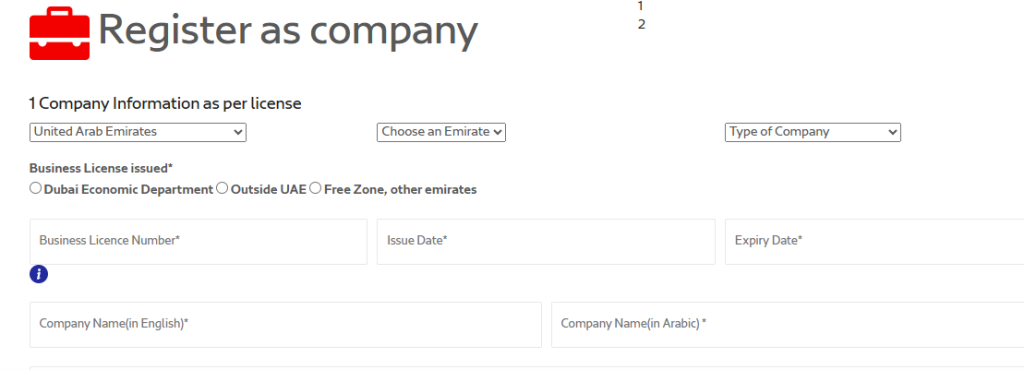
Company Registration
Company accounts require extra verification and document uploads.
Step 1 – Company Details
- Enter company name and trade license number
- Upload business license and ID documents
Step 2 – Administrator Setup
- Enter full name of company administrator
- Create a unique username (6+ characters, letters, or numbers only)
Step 3 – Verification
- Enter the security code displayed on screen
- Wait for approval (usually 2–3 business days)
Once approved, an activation link is sent via email.
After setting your password, you can log in and add business users with restricted access rights.
Password and Security
Strong passwords protect your RTA data and prevent unauthorized access.
Password Requirements: Minimum 8 characters, which include uppercase, lowercase, numbers, and special characters
Password Management Tips: Change your password every 3–6 months, never share your credentials with others, and use different passwords for different accounts.
If You Forget Your Password:
- Click “Forgot Password” on the login page.
- Enter your username or registered email.
- Follow the email instructions to reset it.
If Your Account Is Locked: Visit selfservices.rta.ae/userservices/unlockaccount. Enter your username and verify via email OTP.
Common Login Problems and Solutions
Even though RTA systems are user-friendly, login errors can sometimes happen. These short fixes will help you solve most problems quickly.
RTA App Login Errors
If your RTA app logs out automatically or shows an error, update it from the Play Store or App Store. Clear app cache or reinstall it to fix temporary issues. If the issue continues, try logging in from the official RTA website.
…
Password Issues
If you forgot your RTA password, click “Forgot Password” on the login page. Enter your registered email or username and follow the reset link sent to your inbox. Create a new password that meets all requirements, then log in again.
Account Locked
Entering the wrong password several times may lock your RTA account. Visit offical website. Enter your username, verify through OTP, and follow the steps shown. Once unlocked, reset your password to a secure one before logging in again to avoid repeated lockouts.
UAE Pass Login Errors
If your UAE Pass login fails, check if your UAE Pass account is verified and active. Ensure your Emirates ID is linked and your mobile number is correct. Try clearing browser cookies, switching browsers, or using another device. If it still doesn’t work, temporarily use RTA credentials instead.
Password Rejected
When changing your password, make sure it follows RTA’s rules: at least eight characters, one capital letter, one number, and one special character. Avoid simple or repeated patterns. Strong passwords prevent errors during login and keep your RTA account secure from unauthorized access.
Important Login Tips
Before retrying any login, clear your browser cache or app data. Restart your device and use the latest version of the RTA app or Chrome browser. Avoid public Wi-Fi networks when logging in, and always check that the website starts with https:// for safe access.
Important Instruction: Always clear your browser cache or app data before reattempting login after several failures. If the issue continues, try another browser like Chrome, Edge, or Safari.
Best Security Practices for RTA Login
To protect your account and personal data, follow these safety rules:
FAQs
Final Thoughts
The RTA login system in the UAE makes transportation management fast, digital, and secure. Whether you’re renewing your license, paying fines, or managing company vehicles, you can complete every task online within minutes.
Using UAE Pass is the easiest and safest way to log in, while traditional credentials remain available for users who prefer them.


